
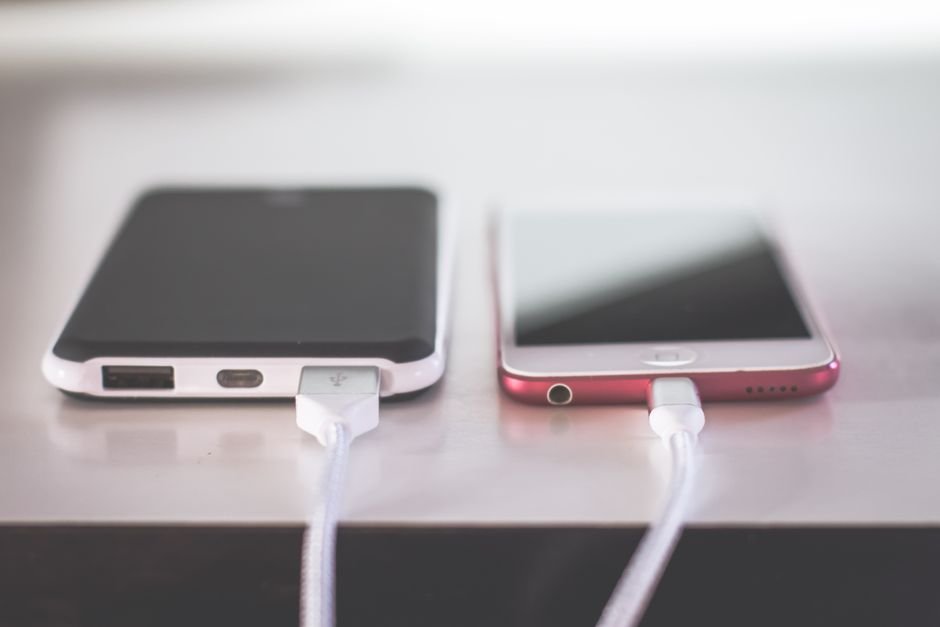
Looking for reliable smartphone battery tips to keep your device running all day without constant charging? Modern smartphones pack incredible processing power, but high-resolution displays and background activity can drain your energy reserves quickly.
By adjusting a few hidden system configurations, you can easily extend battery life without sacrificing your user experience. These straightforward mobile hacks work across both Android and iOS platforms to give you maximum efficiency.
📋 Table of Contents
Key Takeaways:
- Lower screen brightness and shorten screen timeout duration to save instant energy.
- Disable unnecessary location tracking and background app refresh for high-drain apps.
- Use Dark Mode on OLED screens to reduce pixel power consumption significantly.
- Leverage built-in battery saver modes to automate power management automatically.
Proven Smartphone Battery Tips to Extend Battery Life
Applying actionable smartphone battery tips can make the difference between a phone that dies by lunchtime and one that lasts well past midnight. Here are the 10 most effective settings you should adjust right now.
1. Adjust Screen Brightness and Timeout Settings
The display is almost always the single largest consumer of battery power on any mobile device. Set your brightness to auto-adjust, or manually keep it around 40% to 50% for standard indoor use.
Additionally, reduce your screen timeout setting to 30 seconds or 1 minute. Keeping your display illuminated while your phone sits idle on a table wastes an enormous amount of energy over time.
2. Enable Dark Mode on OLED and AMOLED Displays
If your device features an OLED or AMOLED screen, turning on system-wide Dark Mode physically shuts off black pixels. This simple tweak saves noticeable battery power compared to bright white backgrounds.
Most modern apps fully support dark themes. Switch your interface settings to dark mode permanently to maximize your energy savings every day.
3. Limit Background App Refresh
Many apps continuously download data, sync emails, and fetch updates even when you are not actively using them. Restricting background activity for non-essential applications dramatically reduces CPU workload.
Navigate to your device battery settings and toggle off background refresh for social media, games, and retail apps. Leave it active only for critical messaging tools.
4. Turn Off Unnecessary Location Services
GPS hardware inside your phone consumes heavy power when pinpointing your location. Many apps request precise location access even when it is completely unnecessary for their primary function.
Review your permission manager and switch app location permissions to “While Using the App” or “Never.” This single adjustment stops background GPS polling instantly.
5. Disable Push Notifications for Non-Essential Apps
Every incoming notification lights up your display, vibrates the motor, and triggers a sound speaker. When hundreds of notifications arrive daily, your battery suffers a continuous drain.
Turn off push notifications for news apps, games, and promotional tools. You will save power while enjoying a much calmer, less distracted day.
6. Optimize Battery Saver Modes
Both Android and iOS feature intelligent power-saving modes designed to throttle processor speed and limit background syncing when power drops low. You do not have to wait until your battery reaches 20% to activate them.
Turn on standard battery saver mode during long travel days or busy work sessions. It preserves your power reserve without crippling essential phone capabilities.
7. Manage Connectivity Settings (Wi-Fi, Bluetooth, 5G)
When your phone searches constantly for cellular signals or Wi-Fi networks, its transmitters work at maximum output. If you are in an area with poor 5G coverage, switch your preferred network type to LTE/4G.
Turn off Bluetooth and Wi-Fi scanning when you are outdoors or traveling. Preventing your phone from searching for open networks saves precious battery percentage points.
8. Reduce Display Refresh Rates
Modern flagship phones come with smooth 120Hz display refresh rates. While scrolling feels fluid, high refresh rates drain battery reserves noticeably faster than standard displays.
If you need maximum battery life, switch your display refresh rate down to standard 60Hz. You can also select dynamic refresh rate options that scale down automatically when static images are shown.
9. Restrict High-Drain System Animations
Operating systems use fancy transition animations when opening, closing, and switching between applications. These visual effects require graphical processing energy every single time you navigate your phone.
Go to your accessibility settings and enable options like “Reduce Motion” or “Remove Animations.” Your phone will feel noticeably faster while consuming less battery power.
10. Control Auto-Sync for Accounts
Continuous background synchronization for multiple email accounts, cloud drives, and calendar services drains battery silently. Implementing these smartphone battery tips ensures your accounts sync only when necessary.
Set sync intervals to manual or hourly instead of instant push for secondary email accounts. This change cuts down silent background processor wake-ups.
Understanding Battery Science and Mobile Hacks
To truly master phone power management, it helps to understand how modern lithium-ion hardware operates under stress. According to extensive Lithium-ion battery research, extreme temperatures and deep discharge cycles accelerate physical hardware degradation over time.
Combining standard smartphone battery tips with healthy charging habits will keep your hardware capacity high for years. Avoid letting your battery drop to 0% regularly, and try to keep charges between 20% and 80% whenever possible.
Maximizing Device Health for the Long Run
Maintaining long-lasting hardware health requires a balanced approach between software optimizations and physical care. Keeping your operating system updated ensures you receive the latest power efficiency patches developed by software engineers.
For more deep-dive tech tutorials and mobile hacks, explore our comprehensive SmartKee Lifestyle & Technology Guides. Taking proactive control of your everyday tech makes your devices work harder and last longer.
Frequently Asked Questions About Smartphone Battery Tips
Does Dark Mode really save battery life?
Yes, Dark Mode saves battery life significantly on devices equipped with OLED or AMOLED screens. Because black pixels are completely turned off, dark themes consume far less energy than bright white pages.
Should I close background apps to save battery?
Force closing apps constantly can actually drain more battery because re-launching an app from scratch requires more CPU effort. It is far better to restrict background app refresh settings instead.
What is the most effective smartphone battery tips trick for emergency situations?
The single most effective action in an emergency is enabling extreme battery saver mode or switching on Airplane Mode. This cuts off background signals, dims the screen, and slows battery drain to near zero immediately.