
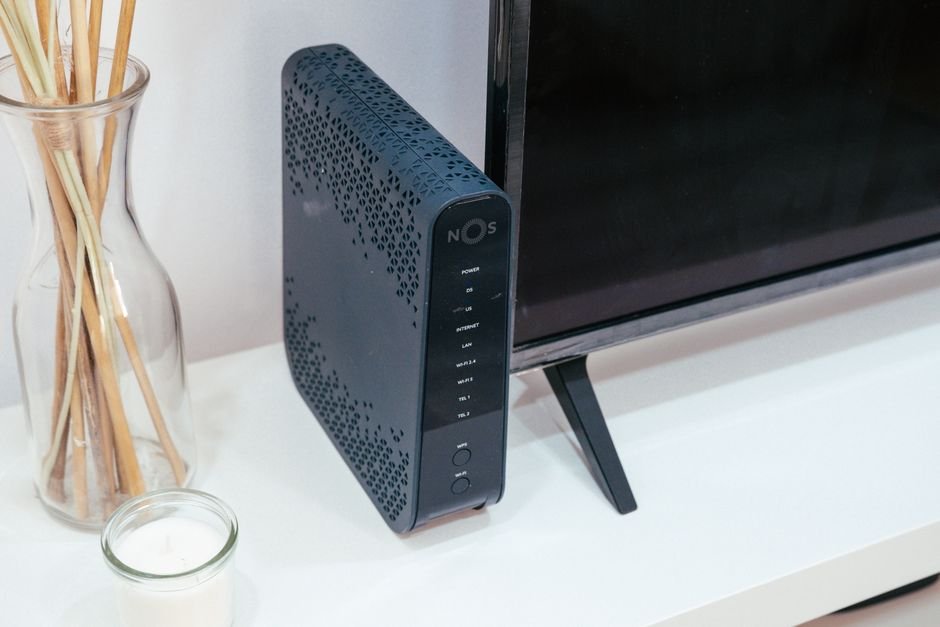
When you want to optimize home wifi, you are ultimately investing in a seamless digital lifestyle where buffering wheels and sudden dropped connections become a thing of the past. Whether you are battling endless Zoom meetings, high-stakes competitive gaming, or 4K family movie nights, poor wireless performance can grind daily productivity to a halt. Fortunately, transforming a sluggish network into a blazing-fast digital highway does not always require purchasing expensive new hardware. By applying targeted, expert-backed adjustments, you can drastically boost your bandwidth efficiency and eliminate frustrating latency issues once and for all.
Modern households have never demanded more from their broadband infrastructure. With smart appliances, tablets, phones, and smart TVs constantly vying for airtime, network congestion is a daily reality. To help you navigate these digital bottlenecks, we have put together a comprehensive roadmap to take your connection from mediocre to elite. For broader tech insights, explore more resources over at SmartKee Lifestyle & Technology Guides.

📋 Table of Contents
Key Takeaways:
- Position your router in a central, elevated location away from physical obstructions and thick walls.
- Switch from the crowded 2.4 GHz frequency band to the faster, less congested 5 GHz or 6 GHz bands.
- Update your router firmware regularly to patch security vulnerabilities and boost processing efficiency.
- Utilize wired Ethernet connections for high-bandwidth devices like gaming consoles and desktop workstations.
Why You Need to Optimize Home Wifi Immediately
Digital latency and packet loss are the silent killers of online productivity and entertainment. When your wireless signals travel through your home, they encounter interference from household appliances, thick concrete walls, and neighboring networks operating on overlapping channels. According to a recent study by TechCrunch, smart home device adoption has surged by over 40% globally, putting unprecedented strain on residential broadband architecture. If you fail to properly optimize home wifi configurations, your internet service provider (ISP) speeds will simply hit a brick wall created by local interference and poor channel allocation.
Fixing slow internet and eliminating lag requires a systematic approach. Instead of randomly guessing what might work, let us dive into the eight most effective, proven strategies to maximize your wireless router’s full potential.
1. Relocate Your Router to a Central Command Center
Where your router sits dictates the physical reach and strength of your wireless broadcast. Many homeowners hide their routers inside TV cabinets, utility closets, or tucked away on the floor behind heavy furniture. This is a massive mistake. Wireless signals radiate outward in a spherical pattern; therefore, placing your device in the corner of your house means half of your signal is literally bleeding out into your yard or street.
To optimize home wifi coverage, mount or place your router in a central, elevated location on the main floor of your home. Keep it clear of dense materials like concrete, brick, metal filing cabinets, and large mirrors, all of which reflect or absorb radio frequency (RF) waves. By giving your router an unobstructed line of sight, you instantly reduce packet loss and boost signal fidelity across every room.
How to Find the Best Physical Placement
Walk through your home with a mobile speed-test application. Take note of where your signal dips sharply. By shifting your router just five to ten feet away from a microwave, cordless phone base, or Bluetooth speaker, you can eliminate cross-frequency interference that silently ruins your ping rates.
2. Switch Between 2.4 GHz and 5 GHz Bands Wisely
Most modern wireless routers are dual-band or tri-band, offering both 2.4 GHz and 5 GHz frequencies (with newer Wi-Fi 6E and Wi-Fi 7 routers introducing the 6 GHz band). Understanding how to allocate your devices across these frequencies is one of the best router speed hacks available.
- 2.4 GHz Band: Offers a longer physical range and penetrates walls better, but operates on a severely congested spectrum shared with microwaves, baby monitors, and neighbor Wi-Fi networks. Best for smart home bulbs and basic browsing.
- 5 GHz Band: Delivers much faster data rates and significantly lower latency, though its range is shorter and it struggles to penetrate thick walls. Best for 4K streaming, video calls, and online gaming.
If your router supports Smart Connect (band steering), it will automatically push compatible devices to the faster 5 GHz frequency. If not, manually separate your devices to ensure high-bandwidth machines reside on the uncongested 5 GHz lane.
3. Change Your Wireless Channel to Bypass Congestion
Just like highway traffic during rush hour, wireless networks can experience major bottlenecks when too many nearby routers broadcast on the exact same Wi-Fi channel. This is especially problematic in densely populated apartment complexes.
For the 2.4 GHz band, channels 1, 6, and 11 are the only non-overlapping channels available. If your router is automatically sitting on channel 3 and your neighbors are doing the same, you will experience severe interference. Download a free Wi-Fi analyzer tool on your phone to scan the local airspace, identify the least crowded channel, and log into your router’s administrative dashboard to lock in that optimal channel.
4. Update Your Router Firmware Regularly
Your router is essentially a specialized computer running its own operating system, known as firmware. Manufacturers frequently push out firmware updates that patch security vulnerabilities, fix memory leaks, and optimize the underlying software algorithms that handle packet routing.
If you have never updated your router firmware, your network might be running on outdated code that struggles to process high-speed fiber internet packages. Log into your router’s web management interface—usually found by typing your gateway IP address into a browser—navigate to the system or administration tab, and check for available updates. Enable automatic updates if your model supports the feature.
5. Prioritize Traffic with Quality of Service (QoS)
When multiple people are streaming movies, downloading large files, and playing games simultaneously, bandwidth contention is inevitable. Quality of Service (QoS) is an advanced router feature that lets you prioritize specific types of network traffic over others.
By enabling QoS in your router settings, you can tell your network to give absolute priority to video conferencing and online gaming packets over background software updates or cloud backups. This ensures that even when your household network is under heavy load, your critical work calls and competitive gaming sessions remain completely lag-free.
6. Upgrade to a Mesh Wi-Fi System or Access Point
Traditional single-router setups often fail in larger homes, multistory residences, or houses with dense plaster and lathe walls. If dead zones persist no matter how much you tweak your settings, standard range extenders—which typically cut your bandwidth speed in half—may not cut it.
Investing in a modern mesh Wi-Fi system consisting of a main router and multiple satellite nodes creates a seamless, unified wireless blanket across your entire property. Your devices will automatically and invisibly roam to the node providing the strongest signal, ensuring lightning-fast speeds in the basement, attic, and backyard.
7. Secure Your Network from Unauthorized Parasites
An unsecured Wi-Fi network is an open invitation for neighbors or passersby to leech off your bandwidth, slowing down your connection and exposing your personal data to security risks. Always ensure your router is secured using WPA3 encryption (or WPA2-AES at minimum).
Periodically log into your router’s attached devices list to inspect every connected gadget. If you spot an unknown smartphone or laptop hogging your data, change your Wi-Fi password immediately and kick unauthorized users off your digital grid.
8. Go Hardwired with Ethernet for Fixed Devices
While wireless technology is remarkably advanced, nothing beats the pure, unadulterated speed and stability of a physical copper wire. Wi-Fi is inherently susceptible to airwave interference, whereas an Ethernet cable provides a dedicated, interference-free pipeline straight to your ISP.
Whenever possible, connect static high-bandwidth devices—such as desktop computers, smart TVs, game consoles, and streaming boxes—directly to your router or an unmanaged Gigabit switch using Cat6 or Cat7 Ethernet cables. Offloading these heavy hitters from your wireless airwaves frees up massive amounts of bandwidth for your phones, tablets, and laptops.
Frequently Asked Questions
How often should I restart my Wi-Fi router?
Restarting or rebooting your router every two to four weeks is a healthy maintenance habit. Over time, routers accumulate cache data, experience memory leaks, and encounter background software fatigue that slows down processing speeds. A simple 30-second power cycle clears the cache, resets background processes, and instantly restores peak operating efficiency.
Will upgrading my internet plan fix my lag issues?
Not necessarily. If your core problem is local wireless interference, router placement, or outdated hardware, paying your ISP for a higher gigabit tier will not solve the underlying bottleneck. Always optimize home wifi settings and hardware performance first before spending more money on a faster broadband plan.
What is the difference between a Wi-Fi extender and a mesh system?
A traditional Wi-Fi range extender repeats the existing wireless signal, but it usually creates a separate sub-network and cuts your available bandwidth in half because it uses the same radio to talk to both the router and your device. A mesh system uses dedicated backhaul bands or wired ethernet connections between multiple modular nodes to blanket your entire home in a single, seamless, high-speed Wi-Fi network without speed loss.